SVG Export
Vector images of parts and views for catalogs, manuals and the web in one click, straight from SOLIDWORKS, without exporting and redrawing them one by one.
- SolidWorks 2023–2026
- Windows 10/11
Version 1.2.3 What's new
- Features 9 9 features, 9 done
- Languages 2 Czech, English
Features
-
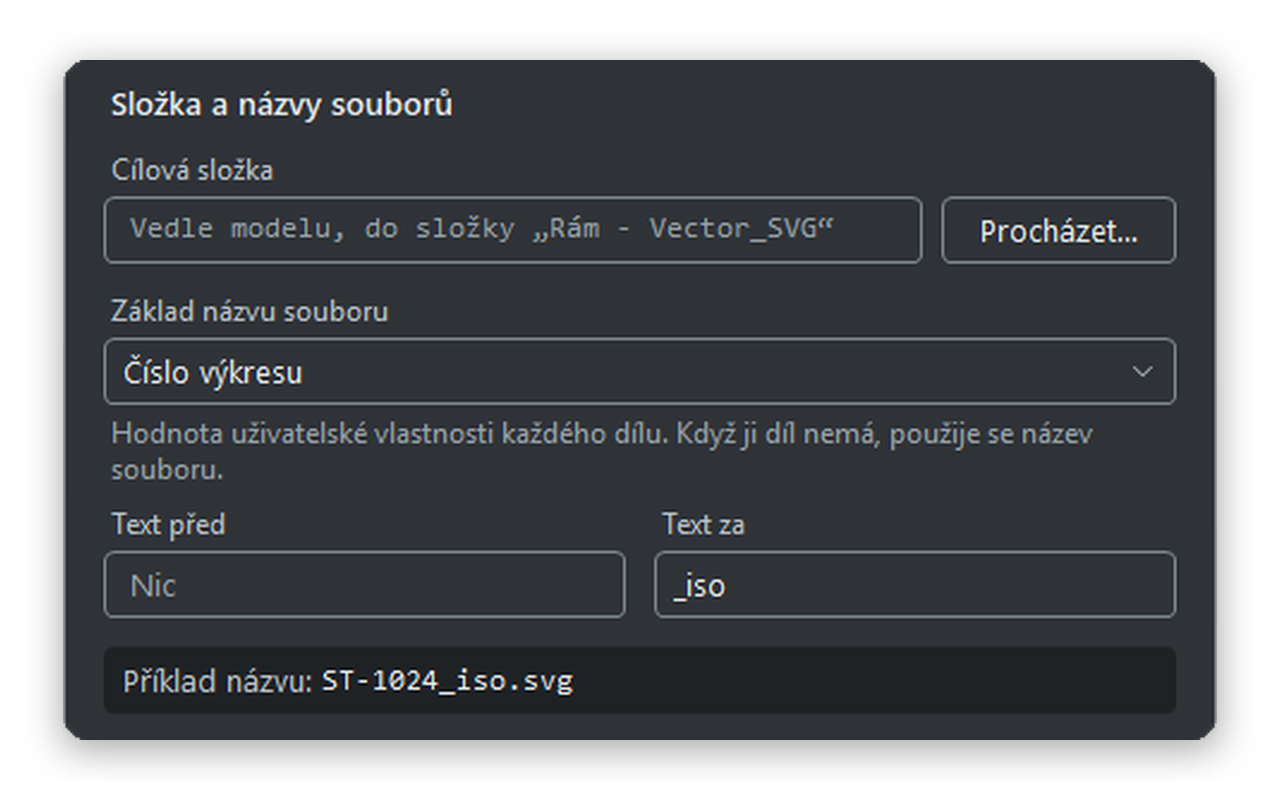
File names from custom properties
Name files by the value of a custom property, such as the drawing number, and add text before and after it. If a part doesn't have the property, the file name is used. An example name is shown right in the settings.
Details -
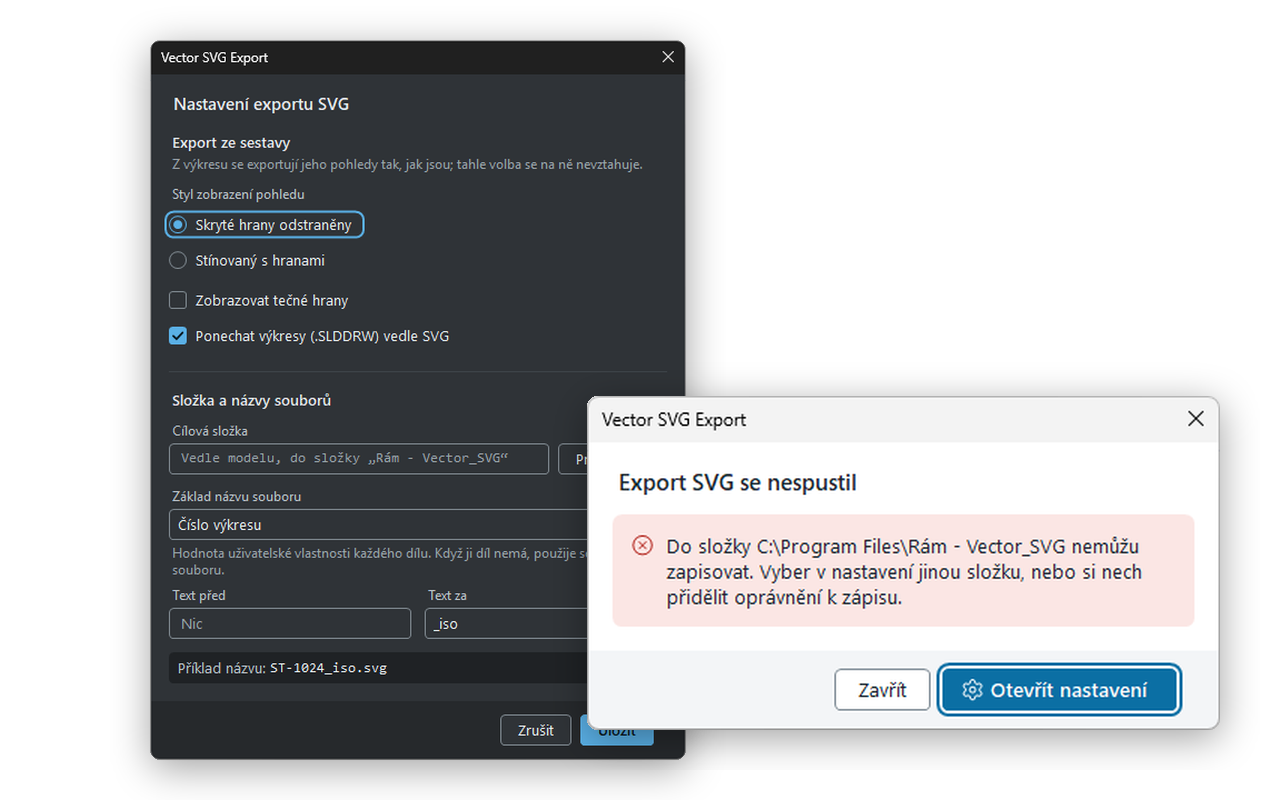
Your own target folder
Save SVGs to a folder you choose, or automatically to a folder next to the model. If the folder can't be written to, the add-in tells you before the export starts and offers the settings.
Details -
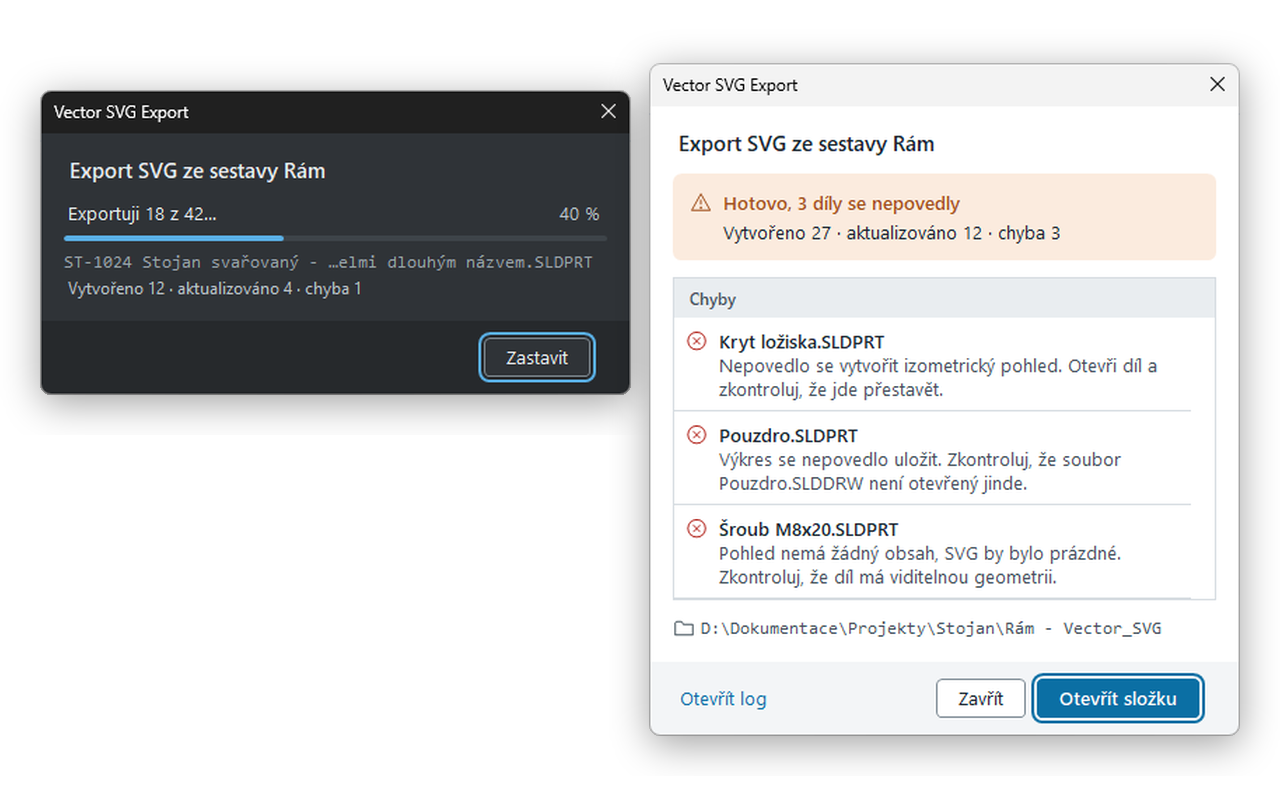
Progress and result summary
During the export you see how much is done, and you can stop it. At the end you get a summary of the created files, a list of errors with advice on what to do about them, and an export log.
Details
No feature matches. Try another word or show all features.
Export
-
An SVG of every part in an assembly
One command goes through the whole assembly, including nested subassemblies, and gives you a separate SVG with an isometric view of each part and subassembly. Each file is processed only once, even if it appears in the assembly several times.
-
SVGs of views from a finished drawing
A drawing gives you an SVG of each view exactly as you see it, including dimensions and notes. Empty sheet margins are cropped to the content, and the drawing itself isn't changed by the export.
-
Export through Save As
In a drawing, choose the SVG type in File → Save As and pick a folder just for this export. Your saved settings stay unchanged.
-
Line drawing or shaded view
For assembly export, choose Hidden lines removed for a clean line drawing, or Shaded with edges. Turn on tangent edges when you want to see them.
Folder and file names
-
File names from custom properties
Name files by the value of a custom property, such as the drawing number, and add text before and after it. If a part doesn't have the property, the file name is used. An example name is shown right in the settings.
-
Your own target folder
Save SVGs to a folder you choose, or automatically to a folder next to the model. If the folder can't be written to, the add-in tells you before the export starts and offers the settings.
Working with the add-in
-
Manual view adjustments are kept
The drawing an SVG was made from can stay next to it. The next export reuses it, so changes to orientation or scale carry over to the new SVGs. If you don't need the drawings, turn this off.
-
Progress and result summary
During the export you see how much is done, and you can stop it. At the end you get a summary of the created files, a list of errors with advice on what to do about them, and an export log.
-
Czech and English, light and dark
The add-in speaks Czech or English according to the SOLIDWORKS language, and its windows follow the light or dark SOLIDWORKS color theme.
Specifications
- CAD
- SOLIDWORKS 2023, 2024 and 2025
- System
- Windows 10 and 11, 64-bit, .NET Framework 4.8
- Output
- Vector SVG, one file per part or view
- Language
- Czech, English
- Installation
- Windows installer, requires administrator rights
What it doesn't do
-
Exports assemblies and drawings
A standalone part can't be exported. Open an assembly or drawing that contains the part.
-
The document must be saved
The add-in needs the location of the assembly or drawing on disk. Save a new unsaved document first.
-
No Cartoon style
SOLIDWORKS doesn't allow changing individual views to the Cartoon display style. Use Shaded with edges instead.
-
Save As SVG for drawings only
The SVG type in Save As is available only for drawings. Export an assembly with the Export SVG command.
Questions
Do I need another program to export?
No. The add-in converts to SVG on its own; all you need is SOLIDWORKS and the add-in installer.
What happens to SVGs from a previous export?
When you export to the same folder again, SVGs with the same name are overwritten. To keep the old version, choose a different target folder or add text to the name.
Will my settings survive an update?
Yes. A new version installs over the old one and your export settings stay. They stay even after uninstalling, so after a new installation the add-in is set up the same way.
Latest releases
-
1.2.3 SOLIDWORKS SOLIDWORKS 2023–2025
New
- SVG export of every part and subassembly from an assembly
- SVG export of views from a finished drawing, also through File → Save As
- File names from custom properties with text before and after
- Drawings next to the SVGs are reused on the next export, so manual view adjustments are kept
- Progress window with a stop button and a result summary with advice on errors
Changed
- The add-in loads in SOLIDWORKS 2023, 2024 and 2025
- The installer doesn't ask for a path and installs a new version over the old one
How to use the tool
Step by step from installation to troubleshooting.
Open the helpRolling this out to more than one machine? IT documentation — silent install, called domains, GDPR.